It's questions like this that get developers thinking about new apps and what steps to take to build them. In our manager's case, he needs an app that calls the phone number of the bullpen phone, an app that displays on the bullpen phone screen images of the pitchers he wants to get ready, and indicates how quickly he wants them to get warmed up (maybe on a scale from next inning to next batter).
If we were to build out this bullpen app we would have to navigate Xcode appropriately.
Oh, and if David Ortiz calls the bullpen he's not much of a conversationalist. He prefers to let his bat do the talking.
Xcode may be most well-known for its ability to write software for Apple's iPhone OS (Operating System), but that's not all Xcode can create software for. In fact, with Xcode you can write software for iOS, watchOS, tvOS, OS X, and the always popular "Other". Not only can you create applications for each of these operating systems (OS), but you can also write frameworks, libraries, and system plug-ins for OS X.
That's all great, but what does it all mean, why are libraries and frameworks important, and when do we use which? That's what we'll cover in this post as we dig a little deeper into Xcode.
Getting Started with iOS
When it comes time to start a new project Xcode gives you some options. Do you want to create something for the iPhone (iOS), for the Apple watch (watchOS), Apple TV (tvOS), for a Mac laptop or desktop (OS X), or something else? These options appear on the left hand side of this window:

In the above case, we see our iPhone application options. In the same way that a baseball clubhouse manager makes sure that all the uniforms are cleaned and hanging in each player's locker ready for the game, Xcode lays out some pre-existing software formatting for each format before we even write a line of code. If you're familiar with Ruby on Rails, it's akin to Rails scaffolding. Do you need it all? Maybe. Maybe not. Either way, it's there if you do. Specifically, Xcode comes with established code for apps that are Master-Detail, Page-Based, Single View, Tabbed, or in Game formats.
What are frameworks and libraries? And how are they different?
A good question with, apparently, no single answer as this Stack Overflow page notes. Seeing how this is our first time with this subject, let's take a broad view for now. This visual representation of frameworks and libraries may help:
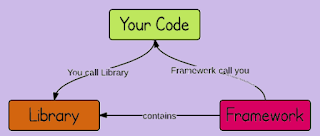
So what's going on here? Let's walk through it. Say that you're a manager building an iOS app that wants to keep track of your bullpen (the green "Your Code" rectangle above).
A framework is made up of one or more libraries. Libraries are pre-existing code that you call to use their functionality instead of building out that functionality yourself. A manager can go out and try to pitch the ninth or he can pick up the bullpen phone and call for the closer who already knows what he's doing and does it much better than the manager.
In the same way, your code calls a library when it needs to use that library's code. Here are some of the most popular Swift libraries currently found on the online code repository, GitHub:

A framework, on the other hand, calls your code (the way that Zack Britton probably tried to call Buck Showalter during the 2016 AL Wild Card game; that phone may still, in fact, be ringing...). Why, or more importantly, when would a framework want to call your code?
Broadly speaking, a framework calls your code when it needs to know what to do with what it has. Here are a few examples:

Those all sound great, but what are they talking about? Good question. In general, what Ben's talking about is this: The user of your app, in this case, the manager, chooses a reliever from the bullpen and calls him. Then what? Then the framework takes that information - that the app needs to call a specific reliever in the bullpen - and calls your code to find out what to do with the manager's action. In our case, the framework learns from your code that the headshot of the chosen reliever should appear on the screen of the bullpen phone.
That's the big picture of what it means for a framework to call you. In other words, the framework's not calling you, it's calling the code you wrote so the framework knows how to properly respond to an event in your app. The Hollywood paraphrasing that some software bloggers and teachers have adopted to explain frameworks ("Don't call us, we'll call you.") is cool, but potentially confusing. Hopefully this explanation clears things up.
Here is a long list of frameworks that come with iOS-based devices. The list includes frameworks that allow users to access their address books, for determining a user's location, and for accessing a user's calendar for event data among others.
Our manager can even create his own frameworks and distribute them if he wants so teams from Rookie ball to the majors can use the technology.
On Deck: We'll continue to delve into Xcode.

So what's going on here? Let's walk through it. Say that you're a manager building an iOS app that wants to keep track of your bullpen (the green "Your Code" rectangle above).
A framework is made up of one or more libraries. Libraries are pre-existing code that you call to use their functionality instead of building out that functionality yourself. A manager can go out and try to pitch the ninth or he can pick up the bullpen phone and call for the closer who already knows what he's doing and does it much better than the manager.
In the same way, your code calls a library when it needs to use that library's code. Here are some of the most popular Swift libraries currently found on the online code repository, GitHub:

A framework, on the other hand, calls your code (the way that Zack Britton probably tried to call Buck Showalter during the 2016 AL Wild Card game; that phone may still, in fact, be ringing...). Why, or more importantly, when would a framework want to call your code?
Broadly speaking, a framework calls your code when it needs to know what to do with what it has. Here are a few examples:

Those all sound great, but what are they talking about? Good question. In general, what Ben's talking about is this: The user of your app, in this case, the manager, chooses a reliever from the bullpen and calls him. Then what? Then the framework takes that information - that the app needs to call a specific reliever in the bullpen - and calls your code to find out what to do with the manager's action. In our case, the framework learns from your code that the headshot of the chosen reliever should appear on the screen of the bullpen phone.
That's the big picture of what it means for a framework to call you. In other words, the framework's not calling you, it's calling the code you wrote so the framework knows how to properly respond to an event in your app. The Hollywood paraphrasing that some software bloggers and teachers have adopted to explain frameworks ("Don't call us, we'll call you.") is cool, but potentially confusing. Hopefully this explanation clears things up.
Here is a long list of frameworks that come with iOS-based devices. The list includes frameworks that allow users to access their address books, for determining a user's location, and for accessing a user's calendar for event data among others.
Our manager can even create his own frameworks and distribute them if he wants so teams from Rookie ball to the majors can use the technology.
On Deck: We'll continue to delve into Xcode.


